Adding a Model to the System Definition File
Add and run customized models for different test scenarios. For example, you can include models for the vehicle simulation.
Pre-requisite {#section_nzf_z4v_mtb .section .mmpdf:paraDef:title_sub}
-
Ensure the model works with the VeriStand Model Framework.
-
Launch the VeriStand Editor.
Reference Images {#section_al3_spv_mtb .section .mmpdf:paraDef:title_sub}

| 1 | To change the values of model parameters before the first time step, set the Initial state to Paused. |
| 2 | Set the Decimation of the model rate. |
| 3 | Select the parameters you want to import as channels. |
| 4 | Select the signals you want to import as a channels . |
Procedure {#section_ew4_1pv_mtb .section .mmpdf:paraDef:title_sub}
-
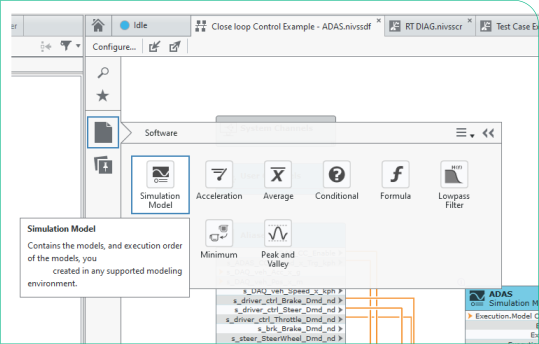
Place a Simulation Model node on the mapping diagram.
-
Click Software»Simulation Model.
-
Place the node on the diagram.
-
In the Open dialog box, select a simulation model and click Open.
-
-
Configure the model in the Item tab.
Note:
If your model contains a vector inport or outport, set Vector port specificationas Segment into scalar channels or Maintain as vector channel.
-
Wire the channels to create mappings.
-
Save the system definition file.
Post-requisite {#section_kqs_n5v_mtb .section .mmpdf:paraDef:title_sub}
- You can make changes to the imported model by selecting the node in the Mapping Diagram window and updating the configuration on the Item tab.
Parent topic:VeriStand Procedures